
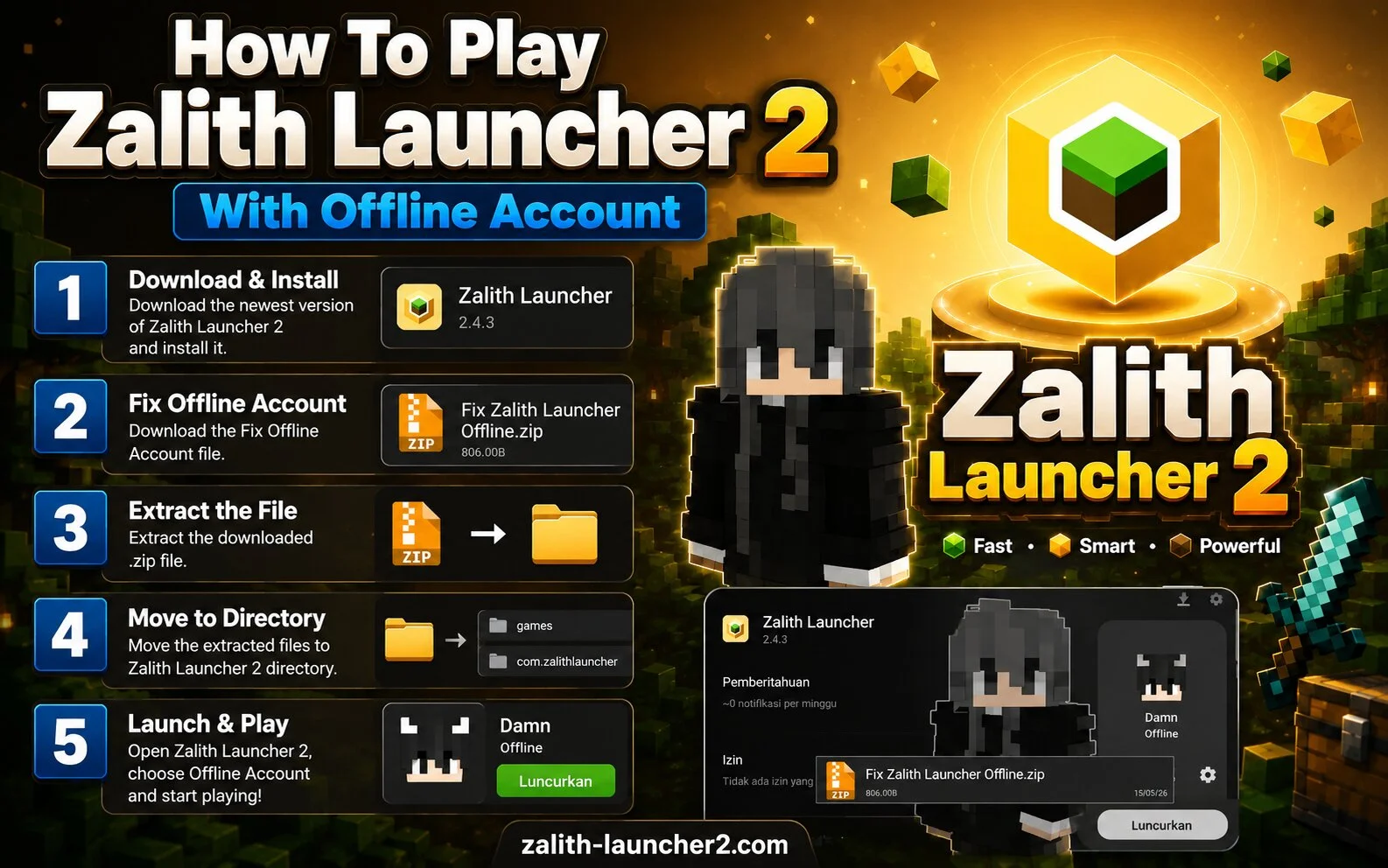
Many Minecraft players want to try Zalith Launcher 2 without signing into a Microsoft account. The launcher provides an offline account option that allows users to access Minecraft using a custom username.
What Is an Offline Account?
An offline account lets you create a local Minecraft profile without online authentication. This option is commonly used for testing settings, exploring worlds, or learning how the launcher works.
Benefits of an Offline Account
- Quick setup
- No account login required
- Easy profile creation
- Useful for testing launcher settings
- Beginner-friendly
How to Create an Offline Account
- Step 1 – Open Zalith Launcher 2 on your Android device.
- Step 2 – Go to the Accounts section.
- Step 3 – Select Add Account.
- Step 4 – Choose Offline Account.
- Step 5 – Enter your preferred player name.
- Step 6 – Save the account settings.
- Step 7 – Select the Minecraft version you want to use.
- Step 8 – Launch the game and start playing.
Things to Know About Offline Accounts
While offline accounts are convenient, they may have some limitations:
- Multiplayer server access may be restricted.
- Online authentication features are unavailable.
- Cloud-based account services may not work.
- Some premium features may require a valid account.
Tips for the Best Experience
- Use a unique player name.
- Keep the launcher updated.
- Test different Minecraft versions.
- Use appropriate graphics settings for your device.
Frequently Asked Questions
Is an offline account free?
Yes, creating an offline account is free.
Can I switch to a Microsoft account later?
Yes, you can add a Microsoft account at any time if supported by your launcher version.
Can I play single-player worlds?
Yes, offline accounts are commonly used for single-player gameplay.
Conclusion
Using an offline account in Zalith Launcher 2 is a simple way to start playing Minecraft without immediate account authentication. It is ideal for testing, learning, and enjoying single-player gameplay while exploring the launcher’s features.