
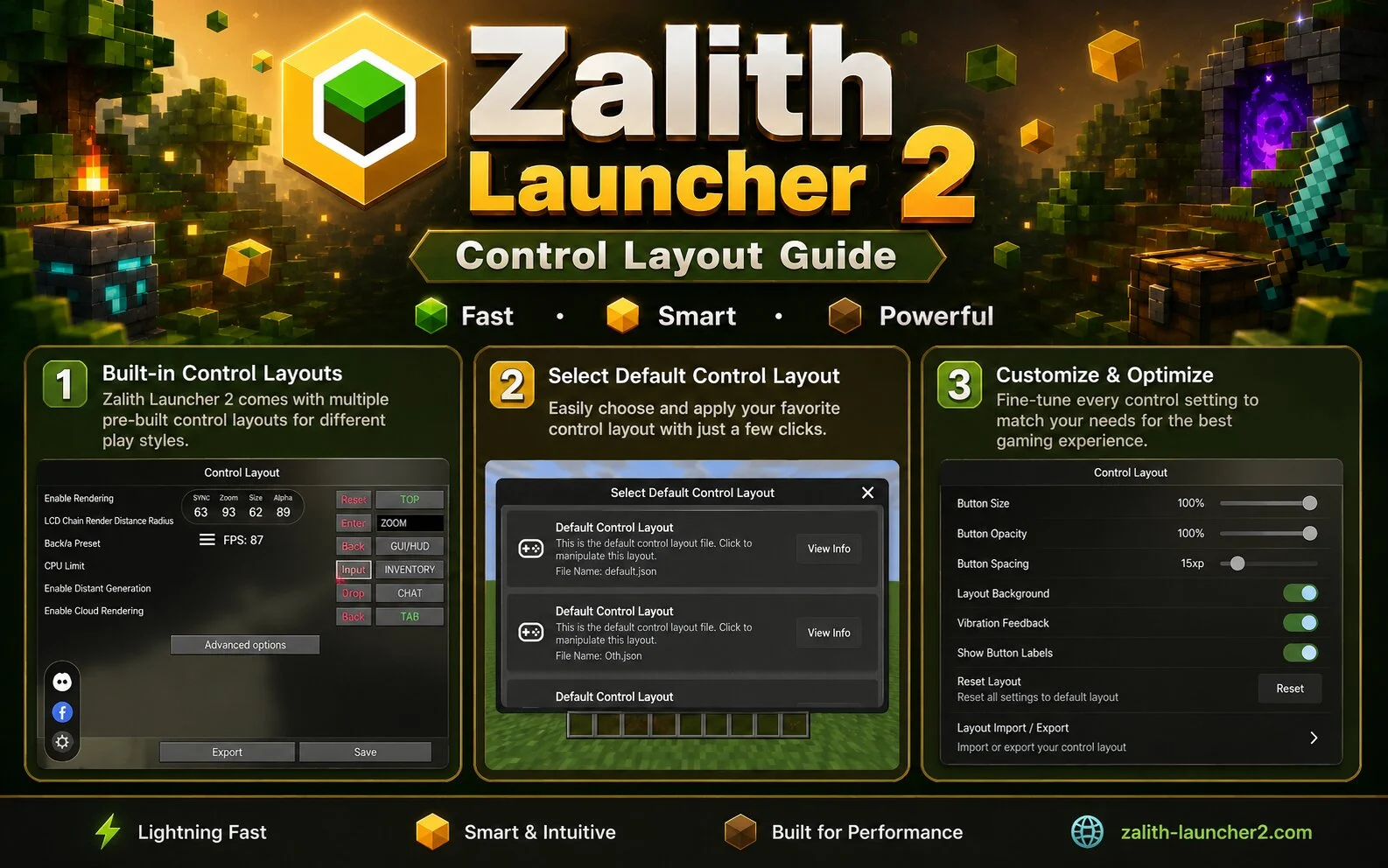
A good control layout can significantly improve your Minecraft experience. Zalith Launcher 2 allows players to customize button positions and create a layout that matches their play style.
What Is a Control Layout?
A control layout refers to the arrangement of movement buttons, action buttons, inventory controls, and other touch elements displayed on the screen.
Why Customize Your Layout?
Every player has different preferences. Customizing the layout can:
- Improve reaction time
- Reduce accidental touches
- Make gameplay more comfortable
- Increase efficiency during combat
- Improve building and mining speed
How to Change the Control Layout
- Open Zalith Launcher 2.
- Start Minecraft.
- Open the control editor.
- Drag buttons to preferred positions.
- Resize buttons if needed.
- Save the layout.
Recommended Layout Tips
For Survival Players
- Place attack and jump buttons close together.
- Keep inventory access easily reachable.
- Use a medium-sized joystick.
For Builders
- Increase button sizes.
- Keep inventory controls near the center.
- Create a clean and simple layout.
For PvP Players
- Place combat buttons near your dominant thumb.
- Reduce unnecessary screen clutter.
- Keep movement controls responsive.
Common Mistakes
- Buttons placed too close together.
- Very small button sizes.
- Overcrowded screen layouts.
Conclusion
The right control layout can make Minecraft easier and more enjoyable. Zalith Launcher 2 gives players the flexibility to design controls that suit their individual needs.