
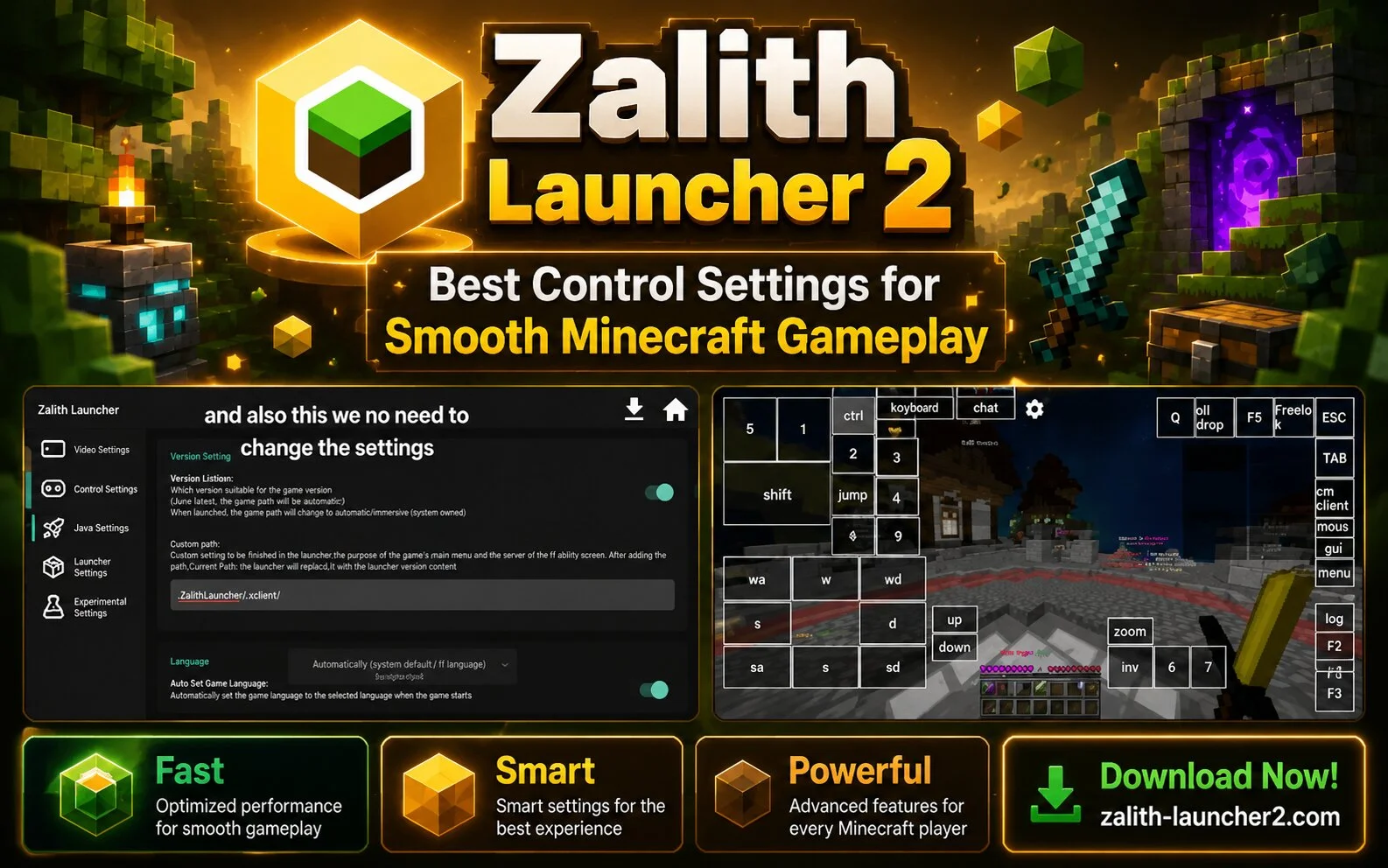
Finding the best control settings in Zalith Launcher 2 can significantly improve your Minecraft experience. Since Minecraft Java Edition was originally designed for keyboard and mouse controls, customizing touch controls on Android is important for comfortable gameplay.
Why Control Settings Matter
A well-designed control layout helps players move faster, react more quickly, and avoid accidental touches. Whether you’re building, mining, exploring, or fighting mobs, the right controls can make gameplay smoother and more enjoyable.
Recommended Best Control Settings
Movement Joystick
- Use a medium or large joystick size.
- Place it in the lower-left corner.
- Keep enough space around it for smooth movement.
Jump Button
- Position it near the right thumb.
- Make it large enough to tap quickly during combat and parkour.
Attack Button
- Place it close to the jump button.
- Use a medium size for fast reactions.
Inventory Button
- Keep it accessible but away from frequently used controls.
- Avoid placing it where accidental touches can occur.
Camera Sensitivity
- Use medium sensitivity for balanced control.
- Increase sensitivity for PvP.
- Lower sensitivity for building and detailed work.
Best Layout for Survival Mode
- Large movement joystick
- Medium attack button
- Medium jump button
- Easy-to-reach inventory button
- Medium camera sensitivity
Best Layout for PvP
- Higher sensitivity
- Larger attack button
- Quick-access jump button
- Minimal screen clutter
Tips for Better Controls
- Test different layouts before settling on one.
- Adjust button sizes based on screen size.
- Keep important controls within thumb reach.
- Save your preferred layout for future use.
Conclusion
The best Zalith Launcher 2 controls depend on your play style, but a balanced layout with comfortable button placement and moderate sensitivity works well for most players. Spending a few minutes customizing your controls can greatly improve your Minecraft experience.